Open Source Browser Extension

Take Control of Your
Content Security Policy

Inspect, edit, and override CSP headers in real time. Debug violations, test policies, and ship secure websites — all from your browser.

Available for
Chrome
Firefox

Everything You Need to
Master CSP

A complete toolkit for inspecting, editing, and debugging Content Security Policies during development.

Live CSP Inspection

Instantly view the active Content Security Policy from HTTP headers or meta tags. See exactly what directives are in place on any page.

Visual Editor

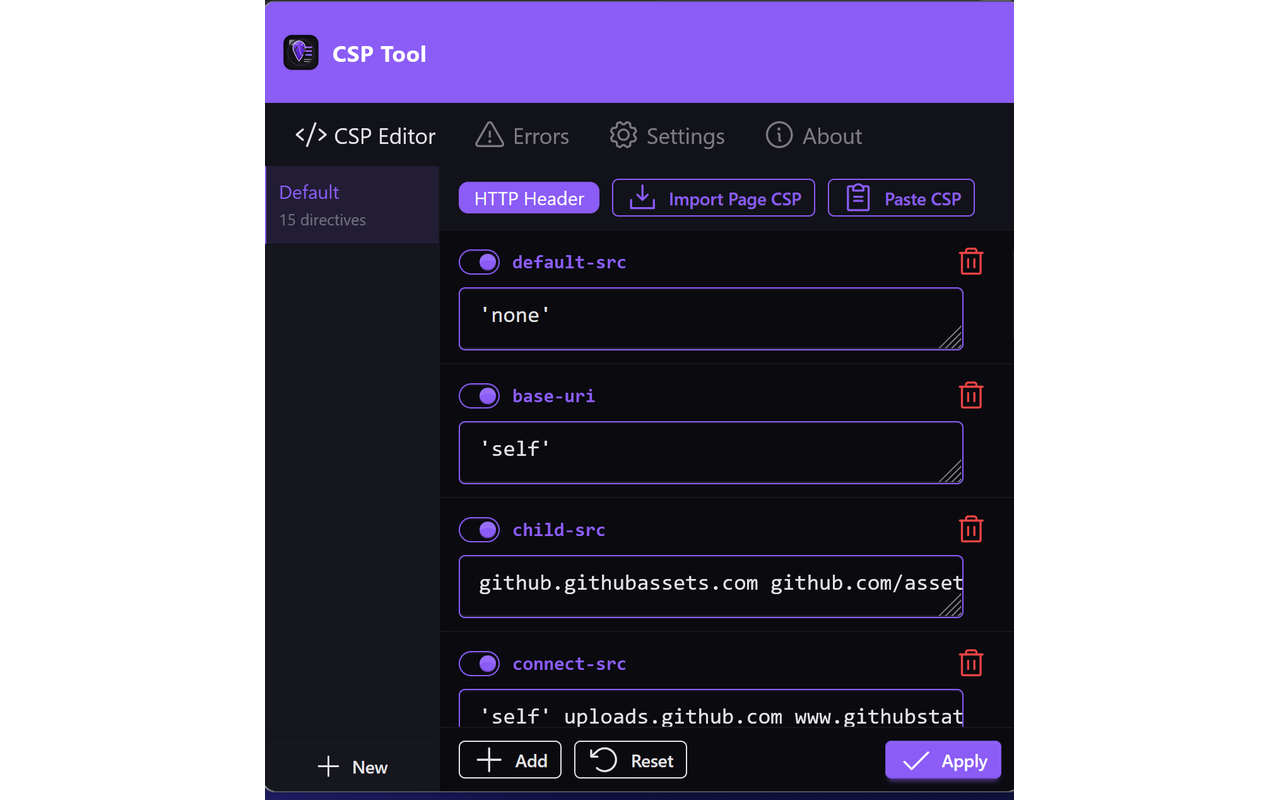
Add, edit, toggle, and remove directives using a clean visual interface. No more hand-editing raw header strings.

Header Override

Replace server-sent CSP headers entirely using the declarativeNetRequest API. Full control to tighten or loosen any policy.

Violation Tracking

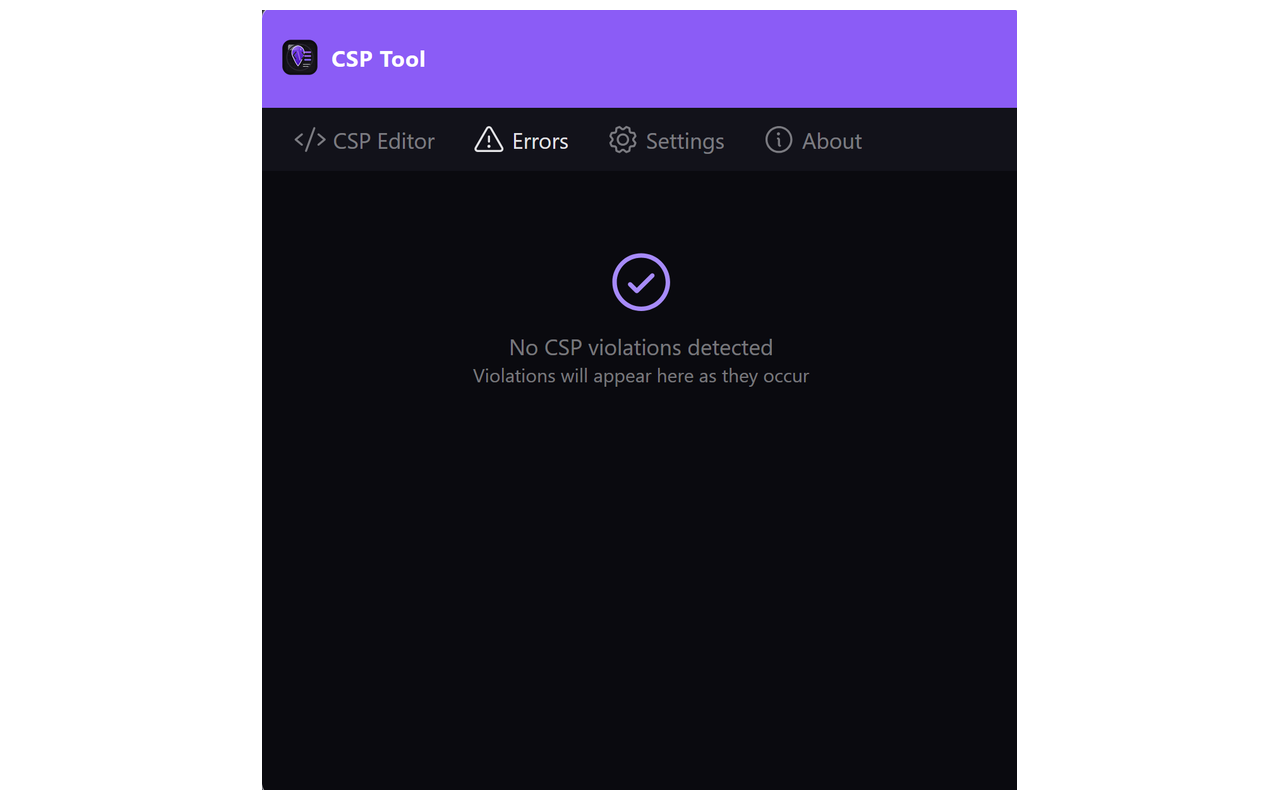
Monitor CSP violations as they happen. See the blocked resource, violated directive, and timestamps in real time.

Multiple Configurations

Save and switch between named CSP configurations. Assign URL patterns so the right policy applies to the right environment.

15 Languages

Full internationalization with support for English, Chinese, Spanish, German, French, Japanese, Korean, and more.

How It Works

CSP Tool gives you two powerful modes for applying policy changes, depending on what you need.

1

Meta Tag Mode

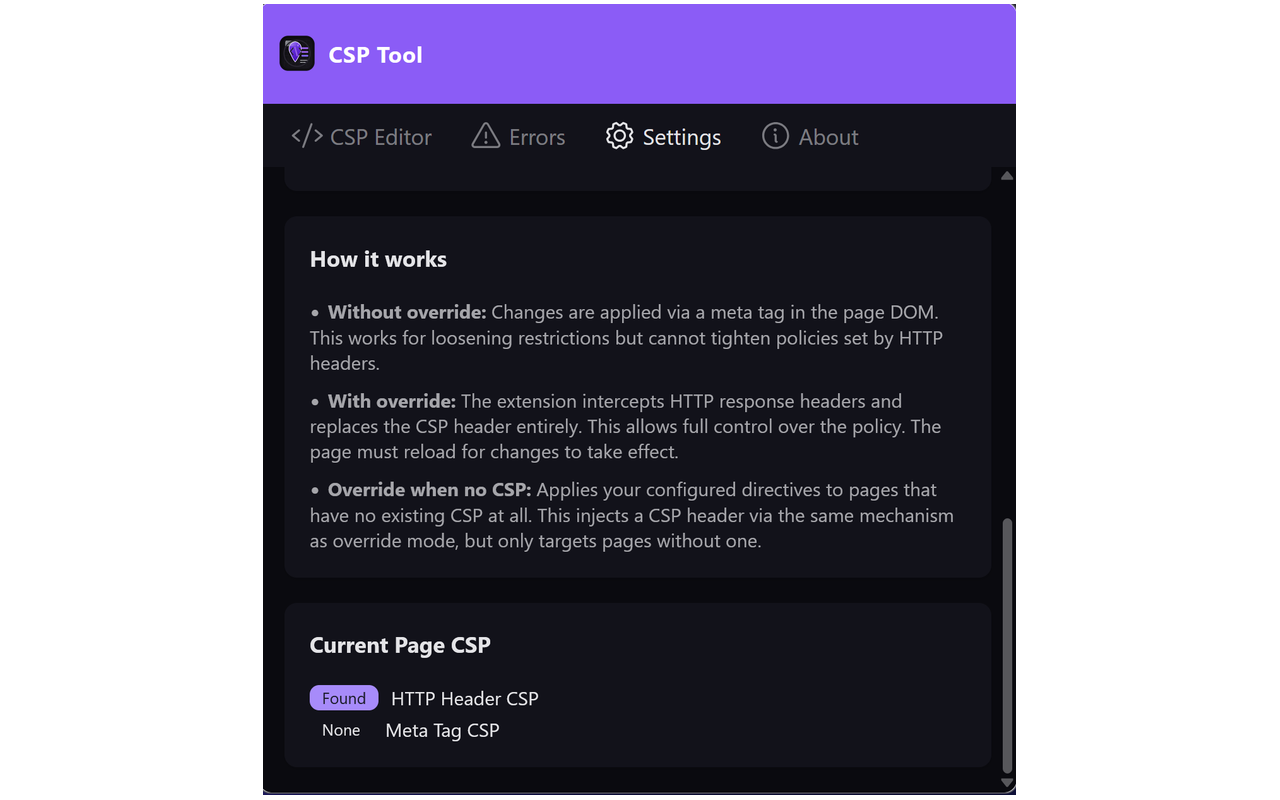
The default mode. CSP Tool injects or modifies a <meta> tag in the page DOM to apply your policy changes.

  • No page reload required
  • Great for loosening policies during development
  • Cannot tighten policies set by HTTP headers
Default
2

Header Override Mode

Intercepts and replaces the actual HTTP Content-Security-Policy response header before the browser processes it.

  • Full control — tighten or loosen any policy
  • Can inject CSP on pages with no existing policy
  • Requires page reload after changes
Advanced

Typical Workflow

1

Inspect

Open the extension popup to see the active CSP on the current page.

2

Edit

Add, modify, or toggle directives using the visual editor.

3

Apply

Click Apply to push the new policy to the page instantly.

4

Debug

Check the Errors tab for violations and iterate until clean.

Documentation

Everything you need to get started and make the most of CSP Tool.

Getting Started

Installation

  1. Install the extension from the Chrome Web Store or Firefox Add-ons.
  2. Navigate to any website you want to inspect.
  3. Click the CSP Tool icon in your browser toolbar to open the popup.

First Steps

When you open CSP Tool on a page, it automatically detects any existing Content Security Policy — whether set via HTTP headers or a <meta> tag. The Editor tab shows the parsed directives. If the page has no CSP, you'll see a blank editor ready for you to build one.

Click Import from Page to pull the live policy into your editor and begin making changes.

Using the Editor

Adding Directives

Use the dropdown at the bottom of the editor to select from all 28 CSP directives defined in the specification, including:

  • Fetch directivesdefault-src, script-src, style-src, img-src, font-src, connect-src, media-src, object-src, frame-src, child-src, worker-src, manifest-src
  • Document directivesbase-uri, sandbox
  • Navigation directivesform-action, frame-ancestors, navigate-to
  • Reportingreport-uri, report-to

Editing Values

Click a directive's value area to edit it. Values are space-separated, just like in a raw CSP string. Common values include 'self', 'none', 'unsafe-inline', 'unsafe-eval', 'nonce-...', and domain patterns like https://cdn.example.com.

Toggling & Deleting

Each directive has a toggle switch to temporarily disable it without losing the values. Use the delete button to remove a directive entirely. The Reset button restores the original policy from the page.

Configurations

Managing Configs

The left sidebar (Config Ribbon) lets you create and switch between multiple named configurations. Each config stores its own set of directives and URL patterns.

URL Patterns

Assign URL patterns to a configuration so it only applies to matching pages. Patterns use glob syntax:

https://example.com/*
https://*.staging.example.com/*
*://localhost:3000/*

When a configuration has URL patterns, it will only activate on pages whose URL matches at least one pattern. Configurations without patterns apply to all pages.

Violation Tracking

The Errors tab captures CSP violations in real time via the browser's securitypolicyviolation event. For each violation you'll see:

  • Error message — what happened
  • Violated directive — which directive blocked the resource
  • Blocked URI — the resource that was denied
  • Timestamp — when the violation occurred

The tab badge shows a running count of violations. Use Clear All to reset and test again with a modified policy.

Settings

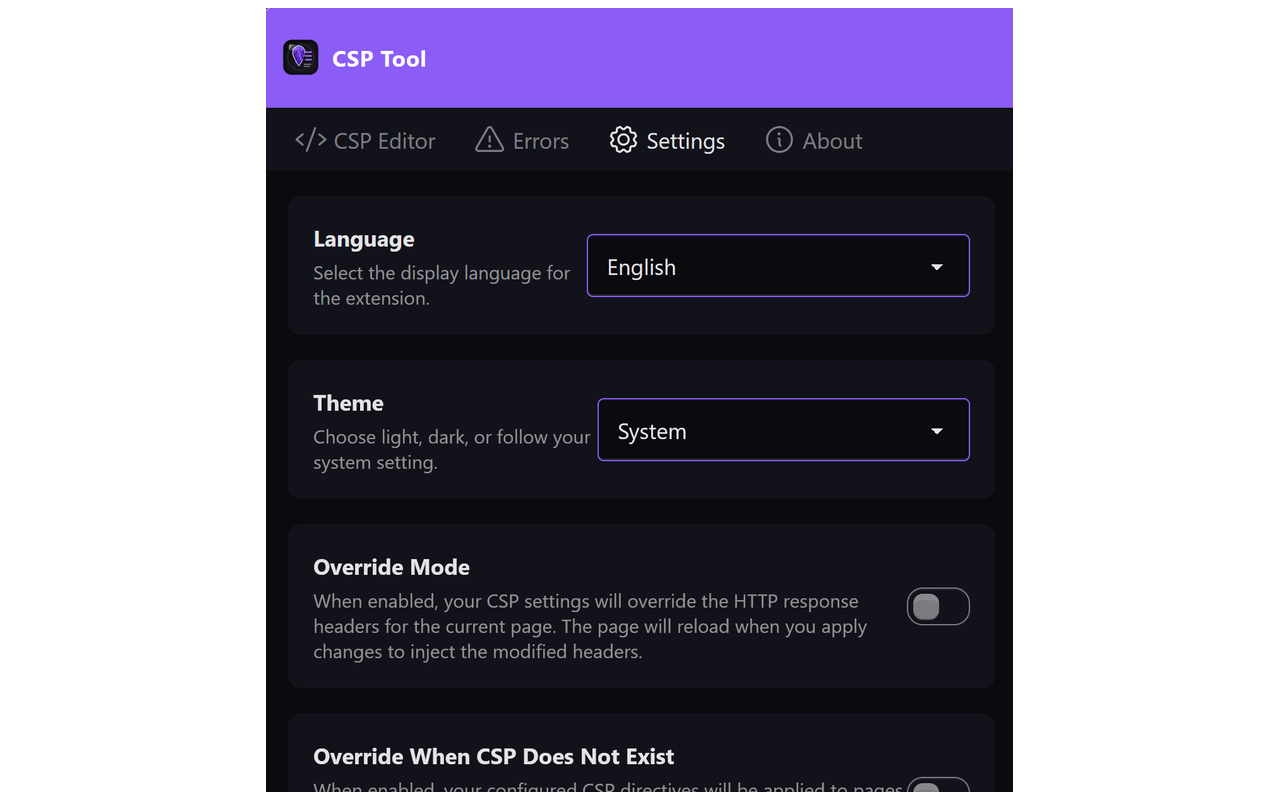
Override Mode

Enable Override Mode in settings to replace the server's HTTP CSP header entirely. This uses the declarativeNetRequest API and requires a page reload after changes.

Override When No CSP

Enable this option to inject a CSP on pages that have no existing policy. Useful for testing what restrictions your policy would enforce before deploying to production.

Theme

Choose between Light, Dark, or System theme. The extension respects your OS preference by default.

Language

Select from 15 supported languages: English, Chinese, Spanish, German, French, Italian, Portuguese, Japanese, Korean, Russian, Polish, Arabic, Filipino, Hebrew, and Hindi.

CSP Quick Reference

Content Security Policy is an HTTP response header that controls which resources the browser is allowed to load for a given page. Here are common directives:

DirectiveControls
default-srcFallback for all fetch directives
script-srcJavaScript sources
style-srcCSS sources
img-srcImage sources
connect-srcXHR, Fetch, WebSocket endpoints
font-srcFont file sources
frame-srcIframe sources
frame-ancestorsWhich pages can embed this page
form-actionForm submission targets
base-uriAllowed <base> URLs
upgrade-insecure-requestsUpgrade HTTP to HTTPS

Get CSP Tool

Install for free on your preferred browser.

Frequently Asked Questions

What is Content Security Policy?

Content Security Policy (CSP) is a security standard implemented as an HTTP response header. It tells the browser which sources of content (scripts, styles, images, etc.) are allowed to load on a page. CSP helps prevent cross-site scripting (XSS), data injection attacks, and other code injection vulnerabilities.

Can CSP Tool tighten a policy set by HTTP headers?

In the default meta tag mode, no — browsers enforce the most restrictive policy between the HTTP header and meta tag. To tighten an existing HTTP header policy, enable Override Mode in settings, which replaces the header entirely before the browser processes it.

Does the extension modify my actual server headers?

No. CSP Tool only modifies what the browser sees locally. Your server's actual response headers are never changed. All modifications happen client-side in your browser session and are not visible to other users or environments.

Why do I need to reload the page in Override Mode?

Override Mode uses the declarativeNetRequest API to intercept HTTP response headers. These rules take effect on new requests, so the page must be reloaded for the modified headers to be applied.

Can I use different policies for different sites?

Yes. Create multiple configurations in the Config Ribbon and assign URL patterns to each one. CSP Tool will automatically activate the right configuration based on the current page's URL.

Is this extension open source?

Yes. CSP Tool is open source and built with Vue 3, TypeScript, and Tailwind CSS. Contributions and bug reports are welcome on GitHub.

Does CSP Tool work on all websites?

CSP Tool works on most websites. However, browser extensions cannot run on certain restricted pages like the browser's internal pages (e.g., chrome:// or about: URLs) or extension store pages.